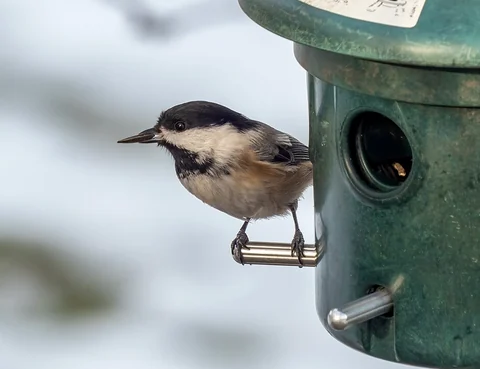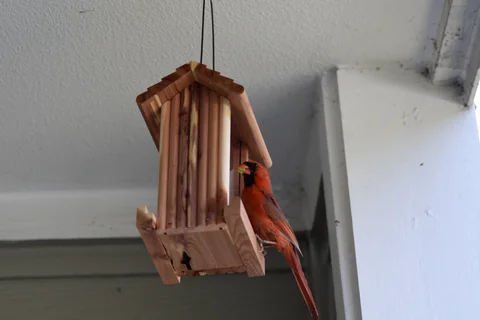
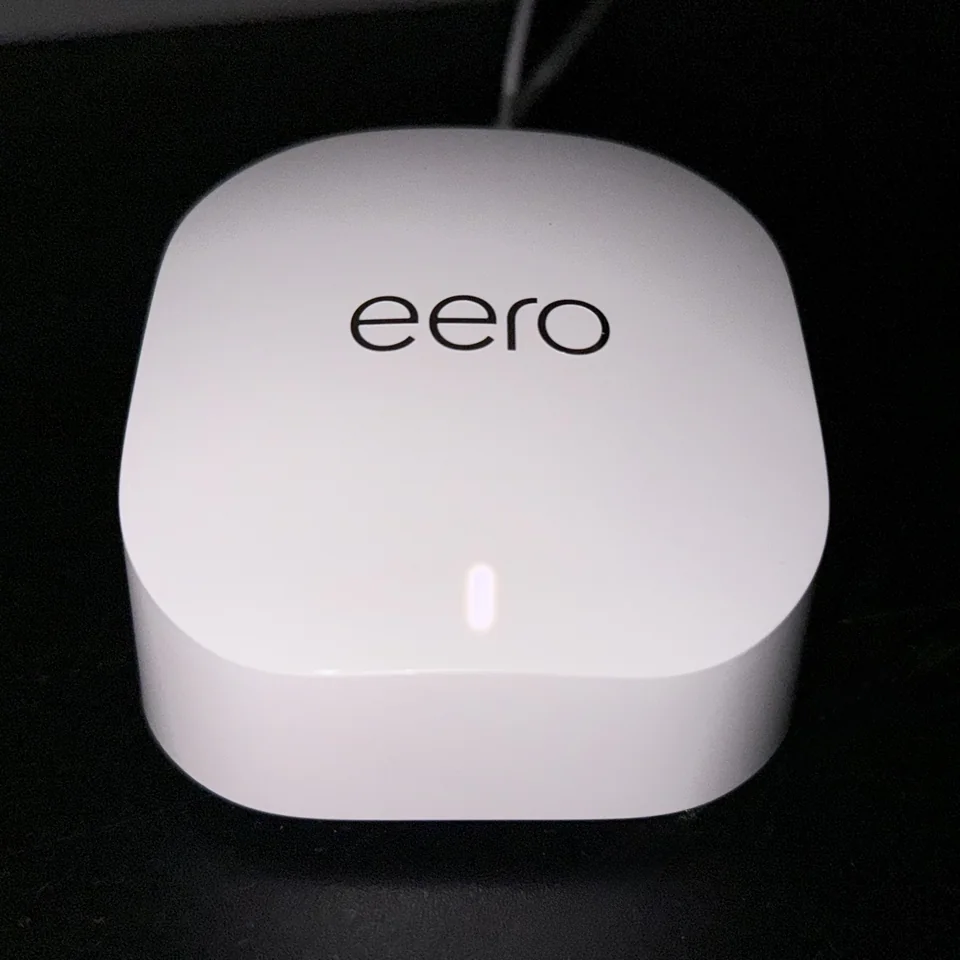
Photo: TheAdderAndRemover · Eero 6+ Image.jpg: original January 2025 photograph · CC BY-SA 4.0. Cropped, gently adjusted, and resized for this guide.
The short answer
Confirm model compatibility, establish a charged close-range baseline, and test the actual mounting point. Change one variable at a time and distinguish connectivity from missing events or service features.
Identify the failure before changing the network
“Offline” describes a result, not its cause. A feeder may never have paired, may have lost its outdoor connection, or may be connected while the app fails to display clips. Those situations need different checks. Treating all three as weak Wi-Fi often leads to an unnecessary extender and an unchanged problem.
Write down the exact symptom: the setup step that fails, the message in the app, and whether the device ever worked at that location. Note the camera model, app version, time, and battery status. A short record makes troubleshooting more efficient and gives support something specific to investigate.
This guide provides a diagnostic sequence, not universal router settings. Follow the current instructions for your exact device. Do not disable security, open inbound ports, or reset household networking equipment merely because a feeder is having trouble. Start with the smallest reversible check that answers a useful question.
Separate four parts of the connection
Think of the system as four links: camera to your home network, home network to the internet, internet to the vendor's service, and service to your phone. A failure in any link can look like a camera problem from the app.
Check whether other devices can reach the internet. Then check whether the feeder's account or app shows a service message. A working phone connection does not prove the camera is connected, but it can rule out a wider internet outage.
Ask what still works. Does live view open? Are earlier clips visible? Do alerts arrive without playable recordings? Does a second authorized household viewer see the same issue? These observations help locate the failure. Avoid sharing passwords to perform a test; use supported household access if it is already configured. The aim is to narrow the problem before making changes.
Confirm the exact Wi-Fi requirements
Read the manufacturer's connectivity page and the manual for the model in front of you. Birdbuddy documents 2.4 GHz connectivity requirements for its supported setup, while Birdfy's help center explains requirements across its products. Do not assume a feature in a newer model exists in an older one.
The label “dual band” on a router means it can provide more than one band; it does not mean every connected device supports both. A 2.4 GHz-only camera needs a compatible 2.4 GHz network even when your phone normally uses another band.
Record the supported authentication and setup conditions from the manual. Managed networks, captive portals, and guest isolation can introduce requirements that a simple home setup does not have. If compatibility is unclear, contact the manufacturer with the router model rather than experimenting with weaker security settings. Documented compatibility is a better starting point than a guessed workaround.
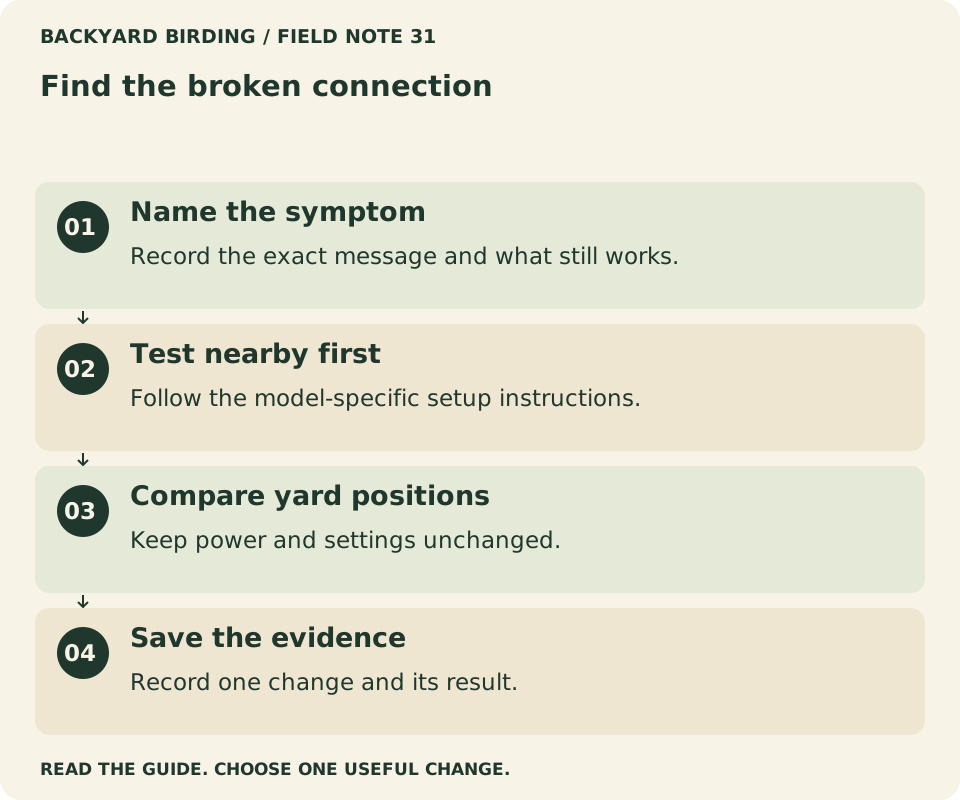
Your visual action map

Read the visual as text
- Name the symptom. Record the exact message and what still works.
- Test nearby first. Follow the model-specific setup instructions.
- Compare yard positions. Keep power and settings unchanged.
- Save the evidence. Record one change and its result.
Establish a charged, close-range baseline
Before testing the yard, charge or power the camera as its instructions require. Place it temporarily in a safe indoor location within ordinary reach of the router and complete the manufacturer's setup sequence. Keep the camera and any required feeder components arranged as directed.
This test asks a limited question: can the device connect under straightforward conditions? It does not establish outdoor range. If setup fails here, moving the feeder around the garden is unlikely to identify the underlying problem.
Check the account, model selection, network name, and password carefully. Copying an extra space or choosing a similarly named network can waste a surprising amount of time. Do not repeatedly factory-reset the device without a reason. First preserve the exact error, consult the relevant help article, and determine what information a reset would remove.
Keep phone setup requirements separate from camera operation
Some devices use Bluetooth or local discovery during onboarding and Wi-Fi for normal operation. The phone's required permissions can therefore differ between setup and everyday viewing. Follow the app's explanation rather than granting every permission indiscriminately.
If pairing stalls, inspect the specific permission requested and confirm that the phone can communicate with the device in the way the manual describes. A denied setup permission is not the same problem as poor outdoor coverage.
Once the camera is operating, your phone may be able to view it through the vendor's service while using mobile data. That does not mean the feeder has its own cellular connection. Keep those two paths distinct when describing a fault to support. “My phone works away from home” says little about the camera-to-router link, which still needs its own reliable connection.
Understand combined network names without overreacting
Many home routers present more than one band under the same network name. That arrangement is not automatically incompatible with a camera that supports only one band. Whether setup needs a temporary adjustment depends on the device and router.
Look for manufacturer guidance before separating network names or changing band behavior. If an adjustment is recommended, record the original setting and how to restore it. Consider the other household devices that use the network before making a change.
Do not conclude that the presence of 5 GHz is itself the fault. The useful question is whether the feeder can join the supported network under the documented conditions. If a close-range setup works but the outdoor position does not, you have evidence of a location-dependent problem. Changing account details or repeatedly reinstalling the app then becomes a less promising next step.
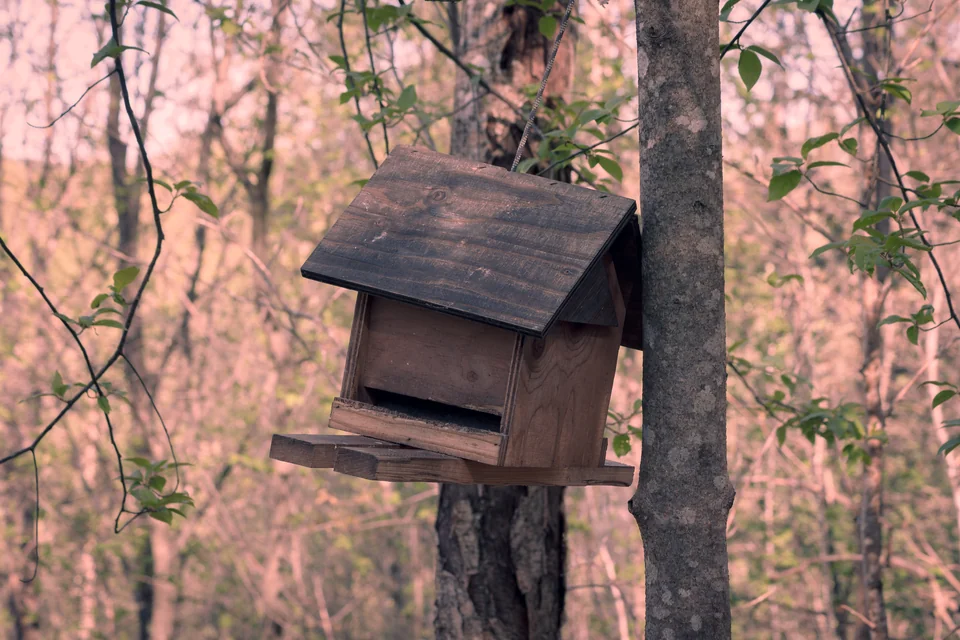
Photo: Sanzzu · Bird feeder in a forest.jpg · CC BY-SA 4.0. Cropped, gently adjusted, and resized for this guide.
“A useful connection test narrows the cause before you buy a fix.”
Backyard Birding — editorial takeaway
Test the actual mounting point
Move the configured camera to the proposed location using a secure temporary arrangement. Test at approximately the intended height and orientation. A device held in your hand beside a wall may behave differently once attached behind a post or enclosed by the feeder housing.
Check more than a single live-view opening. Observe whether the device remains connected through an ordinary period and whether events can be retrieved. Note the time and any weather or positioning changes, but do not claim that a brief trial establishes long-term reliability.
Use a phone's signal display only as a rough comparison between locations. Different antennas and radio behavior prevent it from being a definitive camera test. The camera's actual connection is the relevant evidence. Our placement guide can help you compare positions without neglecting bird access, glass safety, or maintenance.
Look for obstacles along the signal path
Imagine the route between the router and the feeder. Walls, coated windows, metal surfaces, and the arrangement of the building may matter more than the distance measured across the lawn. A position a little farther away with a clearer path can perform differently from one directly behind an obstruction.
Try one nearby alternative that remains suitable for birds and safe to maintain. Keep other settings unchanged so that the comparison answers a location question. Record the outcome instead of relying on a momentary signal icon.
Avoid moving the feeder toward untreated reflective glass just to improve connectivity. Networking is one constraint among several. If every suitable feeding position has an unreliable link, investigate a properly placed network access point or another viewing approach. A functioning radio connection does not make an otherwise poor feeder location acceptable.
Compare connection checks at each location
A high download speed on a phone is not a direct measure of camera reliability. The camera needs a usable connection for its own workload, which may include uploading short clips rather than downloading a large file. Intermittent interruptions can be frustrating even when a speed test produces an attractive number.
Use a simple log with the same checks at each candidate location. Record whether the app connects, whether a recent event is accessible, and whether the problem repeats. If the app exposes signal information, note it along with the result rather than treating it as the result itself.
| Test condition | What to record |
|---|---|
| Close to the router | Setup and basic connection |
| Intended mounting point | Connection and recent event access |
| One nearby alternative | Same checks, unchanged settings |
| After a documented change | Whether the original symptom returns |
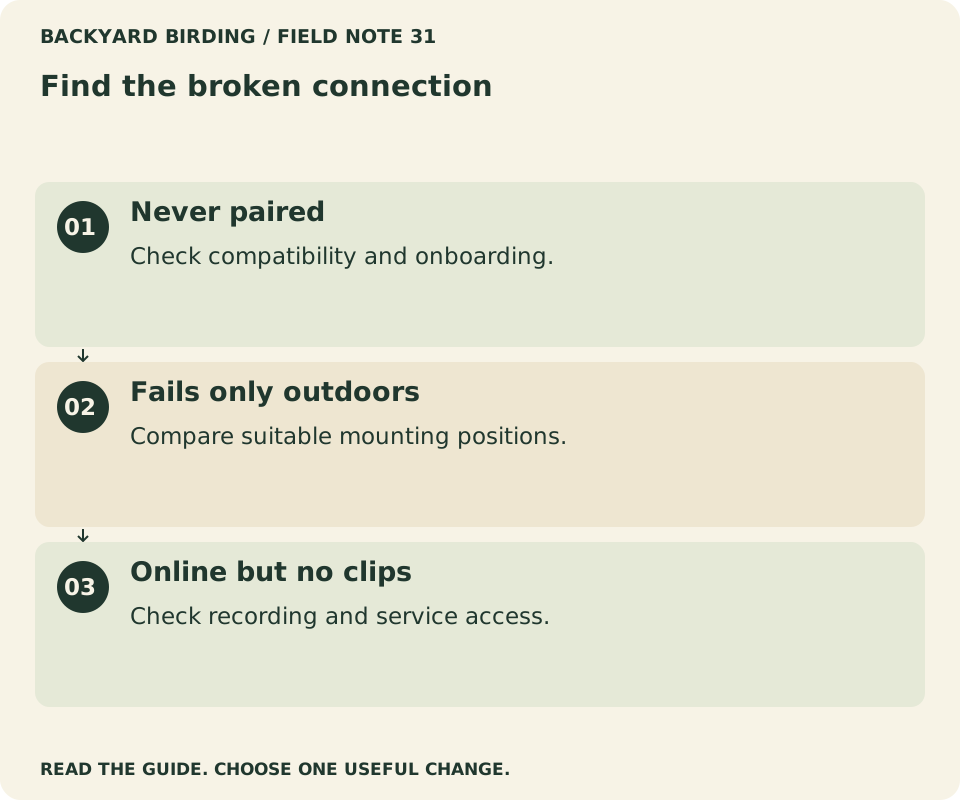
Find your situation

Read the visual as text
- Never paired. Check compatibility and onboarding.
- Fails only outdoors. Compare suitable mounting positions.
- Online but no clips. Check recording and service access.
Distinguish connection loss from missing visits
A bird can visit without producing a saved clip. Detection rules, recording modes, filtering, storage, and the timing of a short visit can all affect what reaches the app. An empty event list alone does not establish a Wi-Fi fault.
Check whether live view or device status is available. Then review the model's explanation of event capture. If the device stays connected but misses a particular kind of visit, investigate framing and recording behavior before changing the network.
Do not trigger a test by disturbing birds or repeatedly approaching an occupied feeder. Use the manufacturer's suggested equipment checks and patient observation. Keep a brief notebook of directly observed visits and available recordings, recognizing that the two are different records. The camera identification guide also explains why detections, labels, and individual birds should not be treated as interchangeable counts.
Check power when the pattern follows activity
A connection complaint may begin when the device has little available power or repeatedly stops operating. Read the battery information alongside the failure times. If the camera disappears after a period of heavy use, a power investigation belongs beside the network investigation.
Use the approved charging procedure to establish a known starting condition. Do not assume a solar accessory is maintaining the battery simply because it is attached. Exposure, settings, and the model's charging behavior all need attention.
Compare the device under its ordinary recording mode before making several simultaneous adjustments. If a fully charged camera works reliably at the same location and later becomes unavailable, record that sequence for support. Our cleaning and solar-care guide describes a maintenance log that keeps charging observations separate from guesses about the cause.
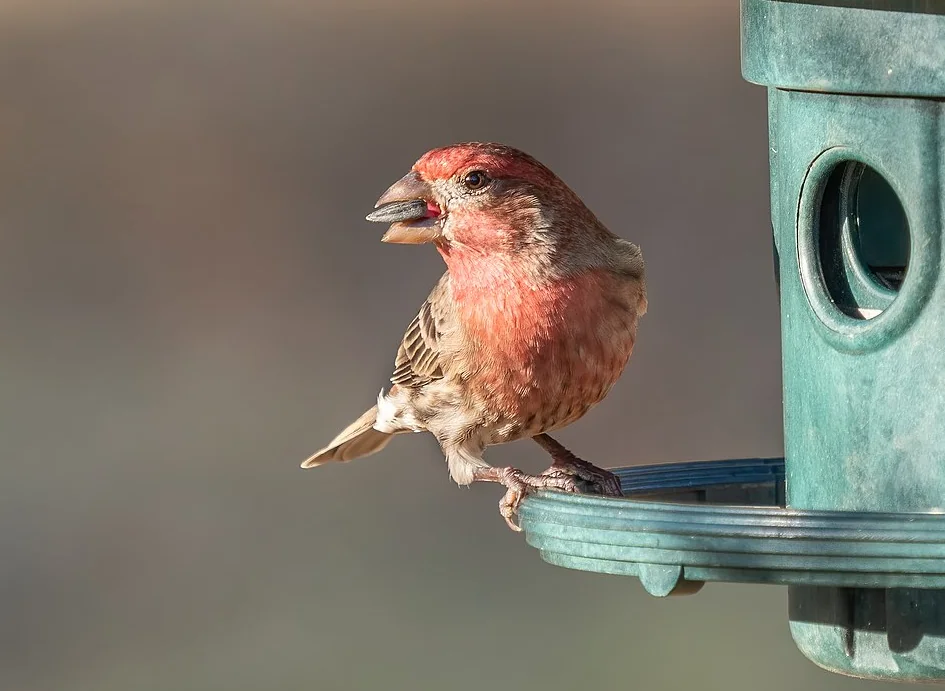
Photo: Rhododendrites · House finch (33687)2.jpg · CC BY-SA 4.0. Cropped, gently adjusted, and resized for this guide.
Evaluate an extender only after the basic tests
An extender needs a usable connection to the network it extends. Placing it at the same poorly served endpoint as the feeder may not solve the missing link. Plan its location around both the existing network and the outdoor destination.
Compare the options your router supports, such as a compatible mesh unit or an appropriately installed access point. Product requirements, building layout, and installation conditions determine which arrangement is suitable. Do not buy solely on a maximum-range statement.
Keep indoor equipment indoors unless it is explicitly rated and installed for the environment. Outdoor power and cable work should follow the applicable product and installation requirements. The feeder problem does not justify an improvised electrical arrangement. If networking changes are beyond your comfort level, provide an installer with the tested locations and observed symptoms. That evidence is more useful than asking for “stronger Wi-Fi everywhere.”
Change one setting and keep a rollback note
Troubleshooting becomes confusing when the network name, camera firmware, app installation, recording mode, and mounting point all change together. If the problem disappears, you will not know which change mattered; if it returns, you will have no stable comparison.
Write a small change record: previous condition, one adjustment, time, result, and restoration step. Apply updates through the official process and avoid interrupting them. Keep the device adequately powered when its instructions require it.
A factory reset can be appropriate when the manufacturer's procedure calls for one, but it should answer a specific problem. Understand whether it removes pairing information, settings, or locally held material before proceeding. Save useful clips through supported export controls first. Repeatedly resetting a device that already connects indoors is a poor substitute for testing its intended outdoor position.
Prepare a support request that can be acted on
Include the exact device model, firmware and app versions if available, router model, error message, and whether the close-range test succeeds. State when the problem began and what changed immediately beforehand.
Attach screenshots that show the fault while hiding account details, network passwords, personal addresses, and other unnecessary information. Share logs only through the vendor's official support channel and review their contents when possible. A public discussion does not need credentials or device access tokens.
Summarize the most informative comparison: “It connects beside the router but fails at both outdoor positions,” or “Live view works, but recent clips are unavailable on two authorized phones.” These descriptions point toward different investigations. Avoid sending an unstructured list of every button pressed over several days; give the sequence that narrows the cause.
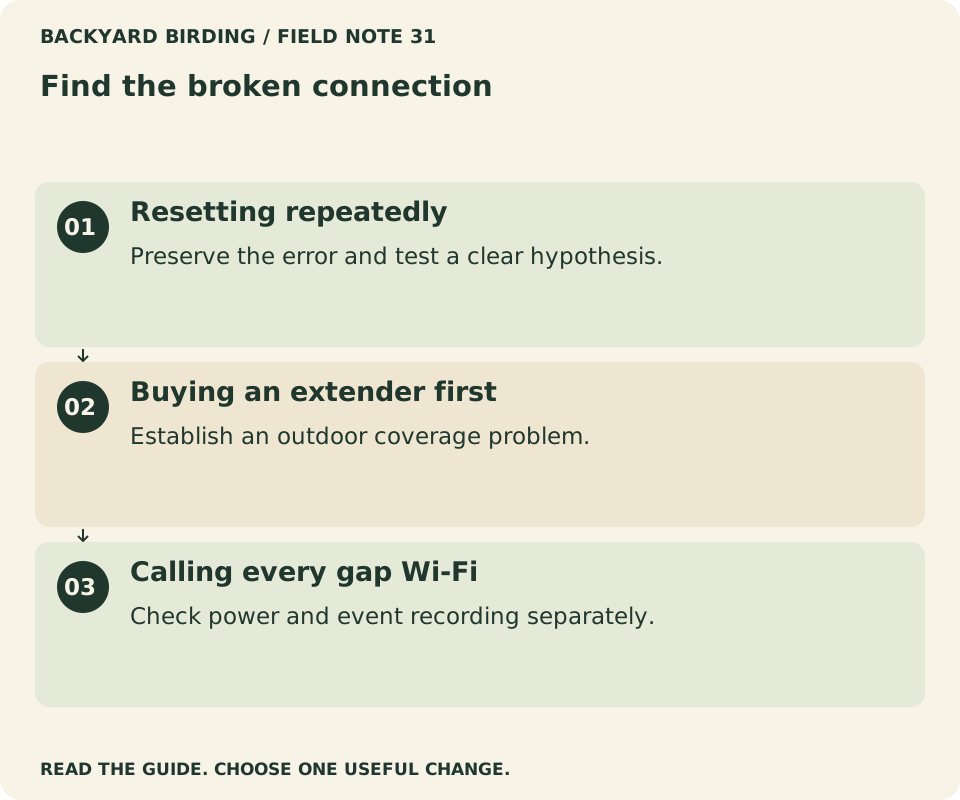
Small mistakes. Better moves.

Read the visual as text
- Resetting repeatedly. Preserve the error and test a clear hypothesis.
- Buying an extender first. Establish an outdoor coverage problem.
- Calling every gap Wi-Fi. Check power and event recording separately.
Use these three patterns to choose the next step
If the device has never connected even under the recommended close-range conditions, concentrate on compatibility, onboarding, account setup, and the manufacturer's error-specific instructions. An outdoor extender is not yet a supported conclusion.
If it connects nearby and fails at the intended position, concentrate on the signal path and alternative mounting points. Keep battery condition and app settings stable during the comparison. This is the clearest situation for evaluating a network extension.
If it remains connected but a feature is unavailable, check service status, plan entitlement, event settings, and storage behavior. The subscription guide helps distinguish an absent service feature from a broken radio link. A connection test should tell you which category to investigate next, not encourage every possible fix at once.
Finish with a configuration you can explain
A successful setup is more than a green icon after the tenth reset. Keep a note of the final location, relevant network configuration, camera settings, and the change that resolved the symptom. Store it somewhere accessible without exposing the password.
Recheck after a meaningful change, such as moving the router or feeder. Do not schedule constant settings adjustments when the system is working. Spend that time observing the birds and maintaining the feeding station.
If the connection remains unreliable despite documented compatible conditions, stop buying accessories on speculation. Present the evidence to support and consider the seller's applicable return or repair options. A camera feeder should add a useful view to the yard. It should not require you to become a permanent investigator of an unexplained fault.
Watch it. Then try it.
Review the steps and common mistakes in two short, silent animations. Each has a complete text transcript below.
Your four-step action map
Read the complete video transcript
Find the broken connection.
- Name the symptom. Record the exact message and what still works.
- Test nearby first. Follow the model-specific setup instructions.
- Compare yard positions. Keep power and settings unchanged.
- Save the evidence. Record one change and its result.
Try the steps, then note any problem that still needs attention.
Three mistakes to avoid
Read the complete video transcript
Find the broken connection.
- Resetting repeatedly. Preserve the error and test a clear hypothesis.
- Buying an extender first. Establish an outdoor coverage problem.
- Calling every gap Wi-Fi. Check power and event recording separately.
Try the steps, then note any problem that still needs attention.
Both animations use this real photograph by TheAdderAndRemover. Photo source · CC BY-SA 4.0. The photo is adapted into original educational animations, not recordings of a field test.
At a glance
| Your situation | Our conclusion | Your next action |
|---|---|---|
| Never paired | Check compatibility and onboarding. | Establish a close-range baseline. |
| Fails only outdoors | Compare suitable mounting positions. | Review the location. |
| Online but no clips | Check recording and service access. | Separate plan features. |
Sources & evidence
- Birdbuddy: Connectivity and Wi-Fi requirements
- Birdfy: FAQ and troubleshooting
- Birdbuddy: Device care by model
- Birdfy: Cloud service and included entitlements
Our standard: real evidence before ratings. Corrections follow our editorial process.
Our verdict & your next actions
Choose the row that describes your setup, then follow the suggested check or adjustment.
| Your situation | Our verdict | Your next action |
|---|---|---|
| Never paired | Check compatibility and onboarding. | Establish a close-range baseline. |
| Fails only outdoors | Compare suitable mounting positions. | Review the location. |
| Online but no clips | Check recording and service access. | Separate plan features. |
Your pocket field checklist
Tick off the steps as you go.
0 of 4 steps completed
Keep building your knowledge in smart bird feeders, or search the full backyard library.